

cortex exec run on the Cloud Code runtime by default, so a fresh install completes a turn without any extra configuration.
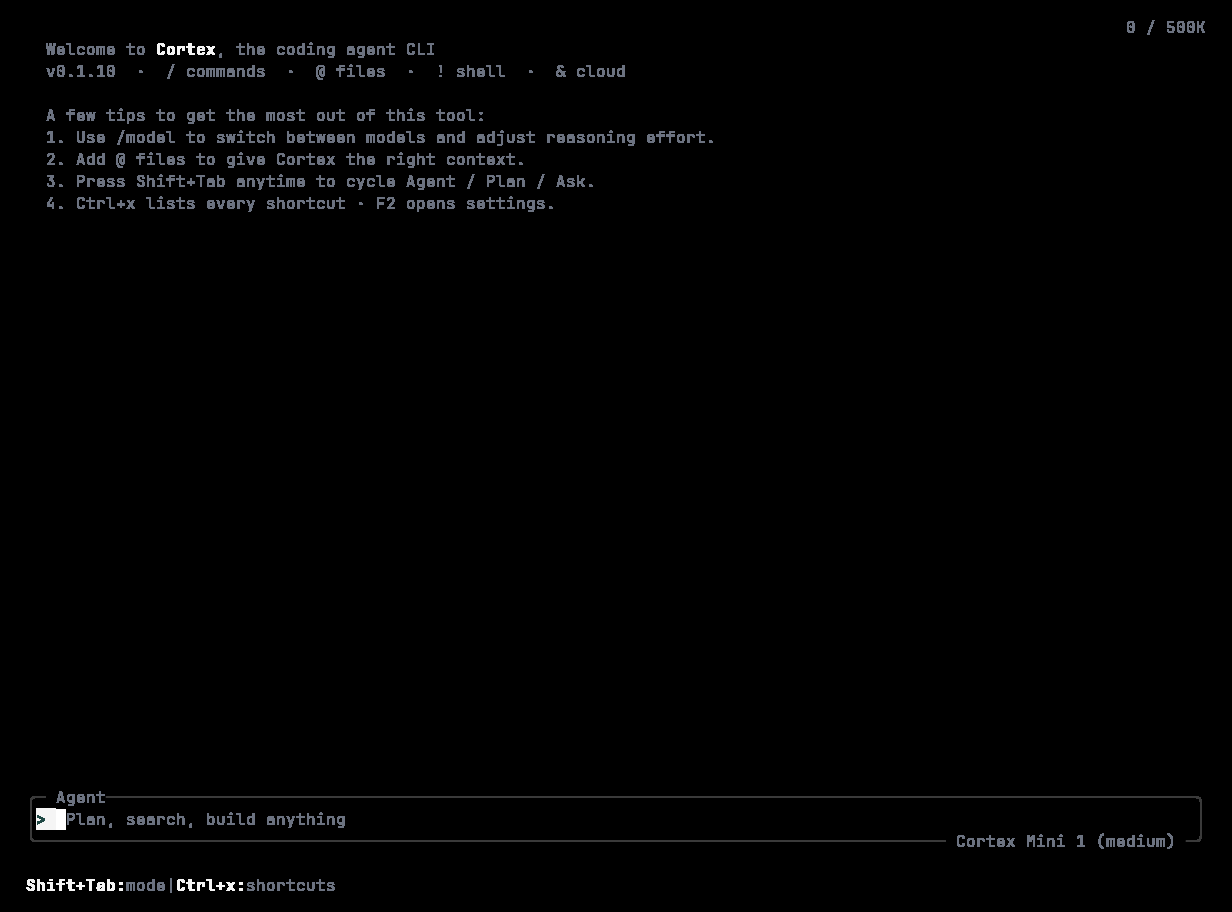
First run: the welcome splash and four tips — /model, @ files, Shift+Tab to cycle Agent / Plan / Ask, Ctrl+x for shortcuts and F2 for settings.
1
Install
cortex --version. Details and options: Install.2
Sign in
cortex whoami confirms it. No browser on this machine? cortex login --device-auth. See Sign in.3
Start a session in your project
Cortex Mini 1 · Agent. Type what you want changed and press Enter.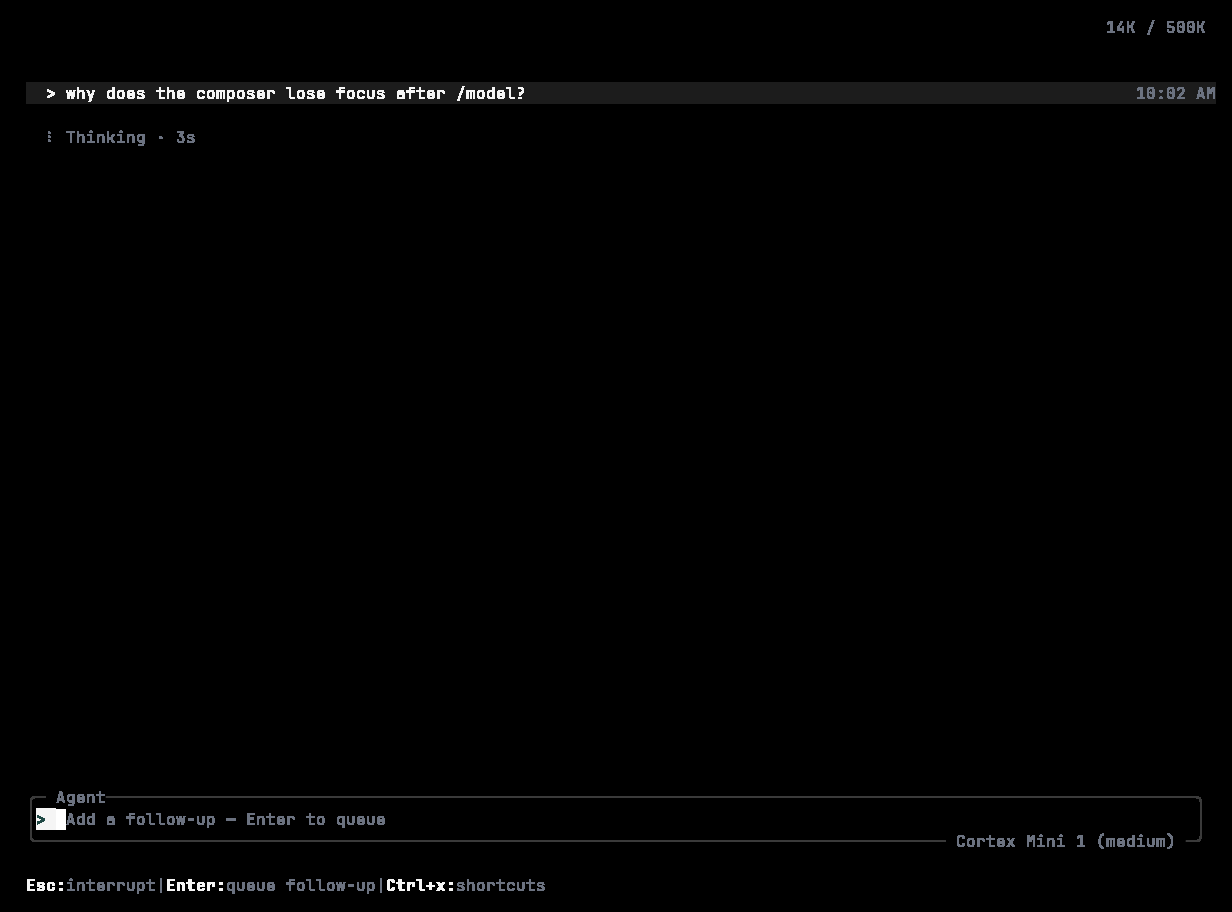
A turn in flight: Thinking with the elapsed time, and a composer that already accepts a follow-up to queue.
4
Tell Cortex about your project
AGENTS.md in the current directory. Cortex reads it at the start of every session, so put build commands, test commands, house style, and anything a new contributor would need there. /init does the same from inside the TUI.5
Choose how much autonomy to grant
Every session runs under an approval policy and a sandbox. By default Cortex asks before it does anything consequential. Press Shift+Tab to cycle Agent → Plan → Ask, use See Modes and permissions.
/permissions to pick Read-only, Smart, or Full access, or set it up front:Other ways to start
cortex run or cortex exec.